Sessions
Expand a host in the sidebar to find its sessions:
- Tmux Sessions lists tmux sessions that are not grouped under a project.
- Herdr Sessions lists running and stopped Herdr sessions.
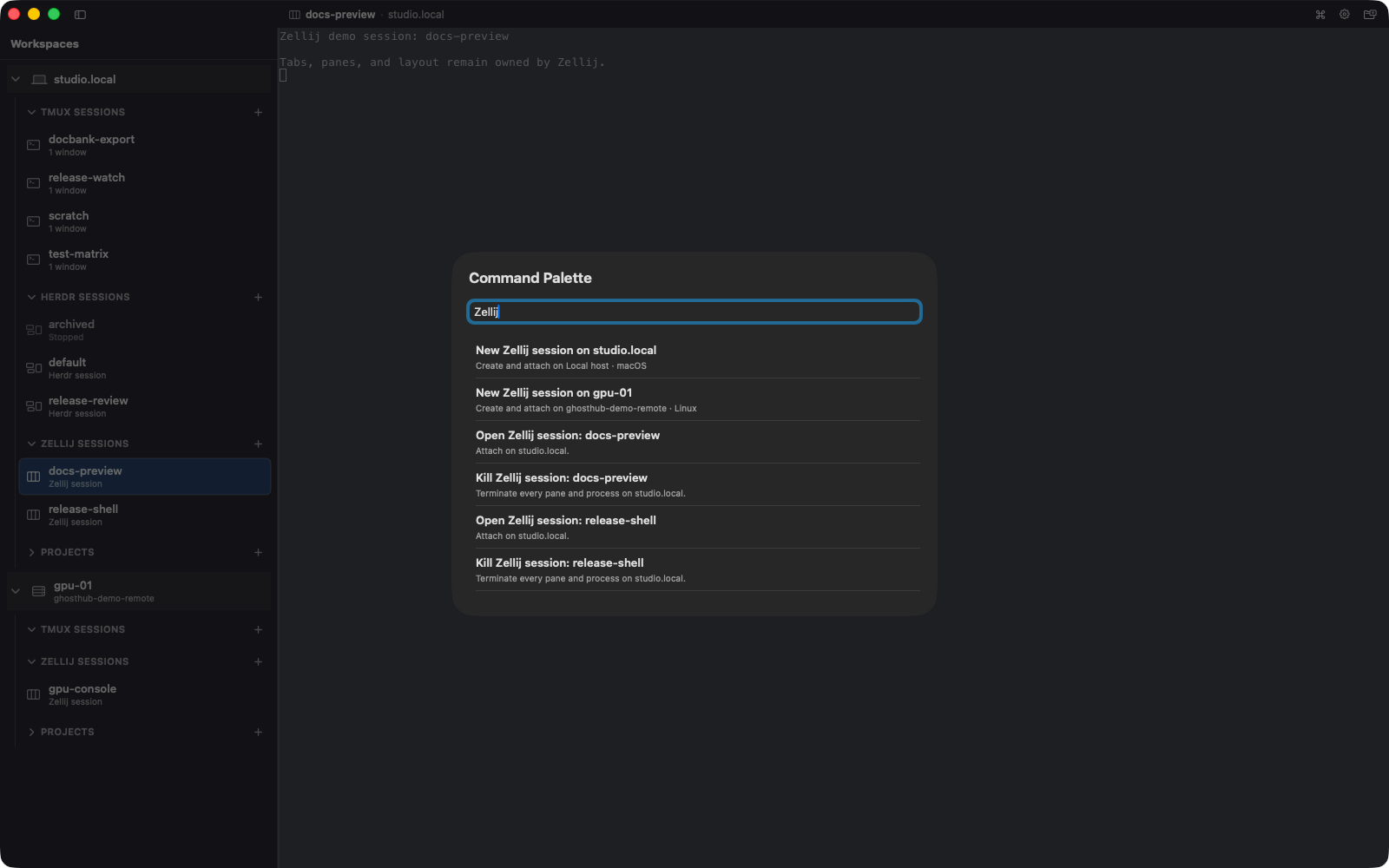
- Zellij Sessions lists active Zellij sessions.
- Projects lists Git worktrees and registered directories with tmux sessions.
If Herdr or Zellij is not installed, its group is hidden. You can use all three multiplexers on the same host. Each keeps its own panes, layout, history, key bindings, and running programs.
Find tmux sessions on kwt's server
Ghosthub checks the default tmux server and kwt's server. Sessions registered
as worktrees or directories appear under Projects. Other sessions on either
server appear under Tmux Sessions, including those created with
kwt tmux run. Ghosthub opens each session on the server where it was found.
It does not scan arbitrary named tmux servers.
Use tmux's window chooser, normally prefix then w, to switch windows inside
a session. To list sessions on kwt's server from a shell, run:
Kwt uses its own socket directory even if your shell sets TMUX_TMPDIR.
Ghosthub's macOS app follows that rule. The default server continues to use
your shell's socket directory.
If Ghosthub cannot read the kwt server, it shows a warning beside the host. Default-server sessions still refresh. Kwt rows keep their last known state until discovery succeeds again.
Create a standalone session
- Expand the target host.
- Select the + beside Tmux Sessions, Herdr Sessions, or Zellij Sessions.
- Enter a session name.
A new tmux session remains usable from the tmux CLI and other tmux clients.
To start a remote session with a saved command, use a
launch profile.
A new Herdr session is created with Herdr's own launch path and Ghosthub
attaches immediately. The Herdr Sessions group and its creation action
appear only when the host's herdr session list --json capability is
available. A name already present in either running or stopped state is
rejected; restart a stopped session instead.
A new Zellij session uses Zellij's new-session path and remains an ordinary Zellij session. Active and resurrectable names are both rejected. Ghosthub lists only active sessions and does not expose resurrection as a workflow.
Attach and detach
Select a running tmux, Herdr, or Zellij session in the sidebar, or search for it in the Command Palette with Shift+Cmd+P. Ghosthub opens an ordinary local or SSH client for the selected backend. Herdr receives the complete terminal and continues to own its workspaces, tabs, panes, history, and key bindings.
For POSIX tmux sessions, Ghosthub enables tmux mouse mode on attachment. Wheel scrolling therefore opens and navigates tmux copy mode even when the session uses tmux's vanilla configuration. Mouse mode is a shared session option, so other attached clients see it too; tmux's own mouse bindings remain in charge. Native Windows/psmux keeps its existing mouse-reporting limitation.
Switching to another host, worktree, or session hides an opened tmux terminal without detaching it. Each workspace keeps every tmux session you explicitly open connected, and returning to one reuses the same terminal and client. Switching away from Herdr or Zellij detaches its presentation; the server and its processes continue running.
Zellij does not provide an atomic active-only attach command. Ghosthub checks that a selected session is active before attaching and does not offer resurrection, but Zellij may resurrect its saved layout if the session exits in the brief interval before the client command resolves it. Ghosthub does not request automatic execution of resurrected commands.
Press Cmd+W to detach only the active presentation. Closing a workspace tab or window detaches every presentation it owns, and quitting Ghosthub detaches them all. None of these actions ends a tmux session or stops a Herdr or Zellij server. A normal Herdr or Zellij detach offers Reconnect and does not retry automatically.
Recover a connection
On a remote host, a dropped SSH connection starts automatic recovery. Ghosthub probes the same exact session before each replacement client. Retry stops when the session disappears, Herdr becomes unavailable, or the client reports a non-transport failure. Reconnect Now skips the current delay; host-key or authentication problems open the connection review. See Automatic reconnect for controls and errors.
After relaunch, Ghosthub restores a remote Zellij session only while the selected SSH route still matches. If SSH settings change during that check, restoration stops instead of connecting to a different host.
If macOS wakes while no display is active, Ghosthub waits instead of treating the missing terminal surface as a permanent attachment failure. Recovery resumes when a display becomes available, without replaying a saved tmux launch-profile command.
Paste text or images and open links
Use Command-V to paste. For image files, text precedence, and cleanup, see Clipboard behavior. Control-V passes through to the terminal program.
Hold Command and click a highlighted terminal link to open it in the default macOS application.
Find text in a terminal
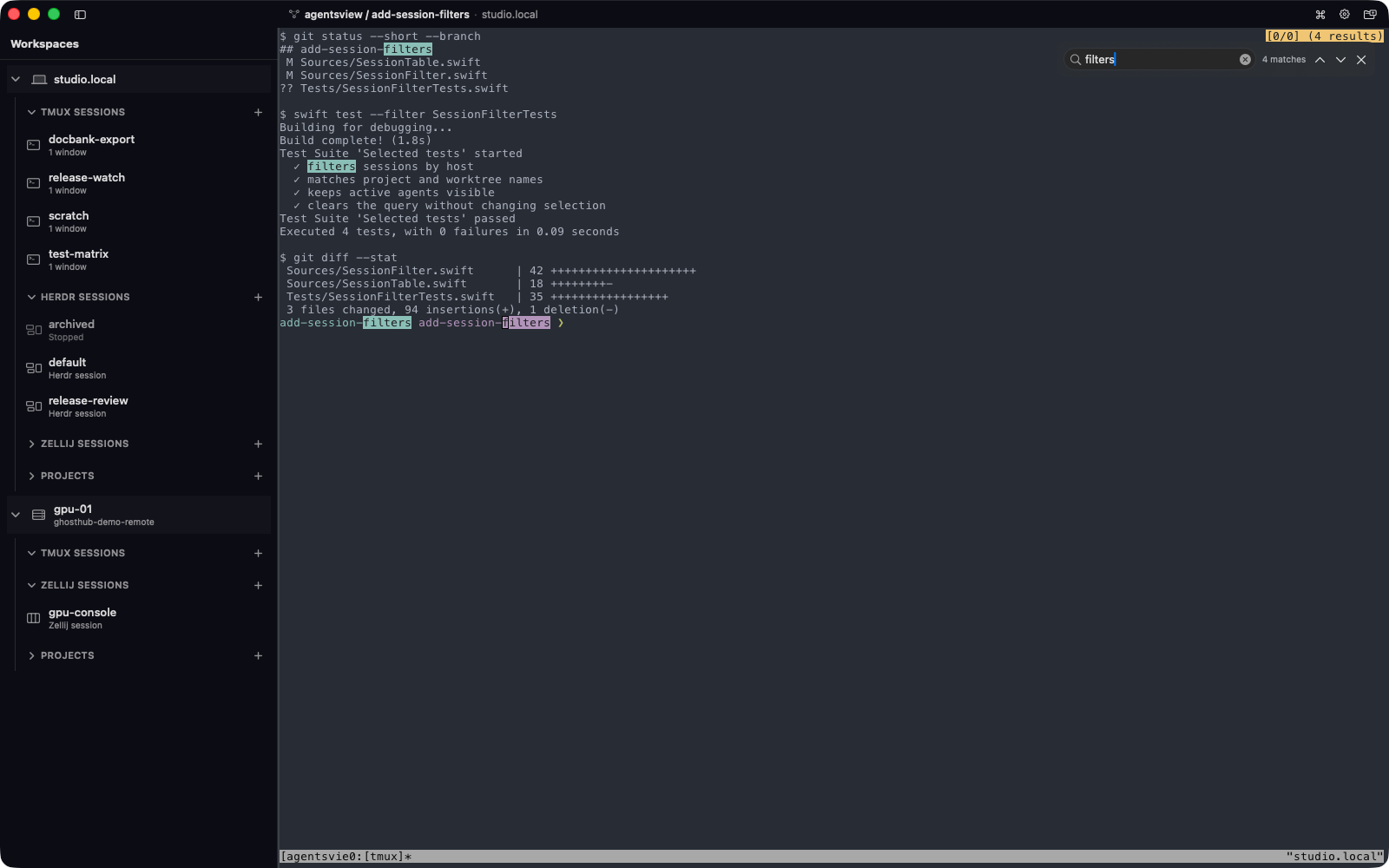
Press Command-F or choose Find in Terminal in the Command Palette. Search covers the active pane's full history in a standalone terminal or a macOS or Linux tmux 3.4+ session. Herdr, Zellij, Windows/psmux, and older tmux versions do not support Find.
Return or Command-G goes toward older matches. Shift-Return or Shift-Command-G goes toward newer matches. Escape, Shift-Command-F, or the close button ends Find.
Standalone terminal search does not wrap. Tmux controls wrapping and the first step after a direction change. Its copy mode is shared by the pane, so another attached client can see or cancel the search.
Preview opened tmux sessions
Choose Settings → Terminal → Session previews, then select Efficient, Live, or Always Live. Select Done to apply the mode. Efficient and Live add a disclosure control beside tmux sessions that you have already opened in that workspace. Expand it to show a preview of the terminal. Always Live connects every freshly discovered tmux session on every reachable POSIX host and expands its tile automatically. Each tile follows its terminal's aspect ratio, preserving the complete frame without cropping. Selecting the preview follows the same route as selecting its session row.
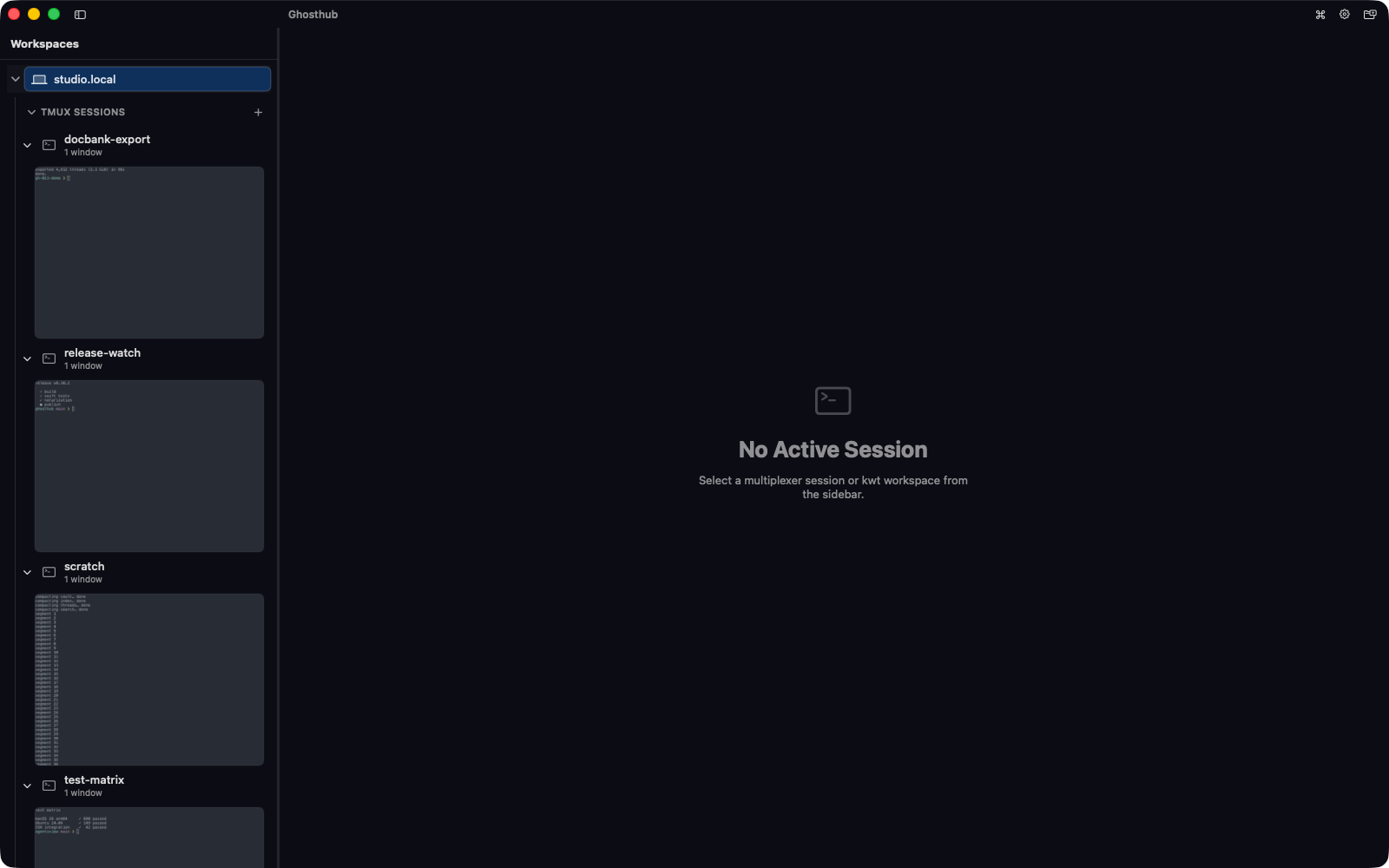
The modes trade resource use for freshness:
- Off is the default. It hides preview controls, clears cached frames, and avoids preview GPU work.
- Efficient captures when you expand a preview and when its tmux presentation stops being active. It does not refresh in the background.
- Live refreshes expanded previews at no more than two frames per second. Across the app, at most four inactive tmux surfaces can render live at once; an additional tile reports that the live-preview limit was reached.
- Always Live connects every freshly discovered tmux session on POSIX hosts, expands its preview automatically, and refreshes all expanded tiles without the four-surface limit. This can use substantial CPU, GPU, memory, and SSH capacity. Collapse a tile to stop rendering it while keeping its client connected. Ghosthub starts the clients incrementally, so earlier tiles can appear while a large session fleet is still connecting.
Expansion choices stay in memory for each workspace window, including while the mode is Off, and reset when that window closes. Hiding the sidebar or briefly switching away from Ghosthub stops live rendering until it is visible and active again. Always Live keeps its automatically opened clients connected during that pause.
Efficient and Live preview only sessions you opened. Always Live adds a tmux client for each discovered session on reachable macOS and Linux hosts. Switching away from Always Live detaches only clients it opened automatically. Opening a preview lets you use that same client interactively.
Previews require tmux 3.4 or newer. Always Live skips automatic attachment when setup fails or that version is unavailable; you can still open the session normally. Windows/psmux sessions are not attached automatically. Preview tiles do not resize the underlying tmux window.
During reconnect, a placeholder replaces the old frame until Ghosthub confirms it has reached the same session. Detaching the client or finding a replacement session with the same name removes its preview.
Activity indicators
After a session connects, Ghosthub remembers it for the rest of the app launch. A small accent indicator appears beside its worktree or standalone session row when Ghosthub observes recent tmux scrollback progress, then clears about thirty seconds after output stops.
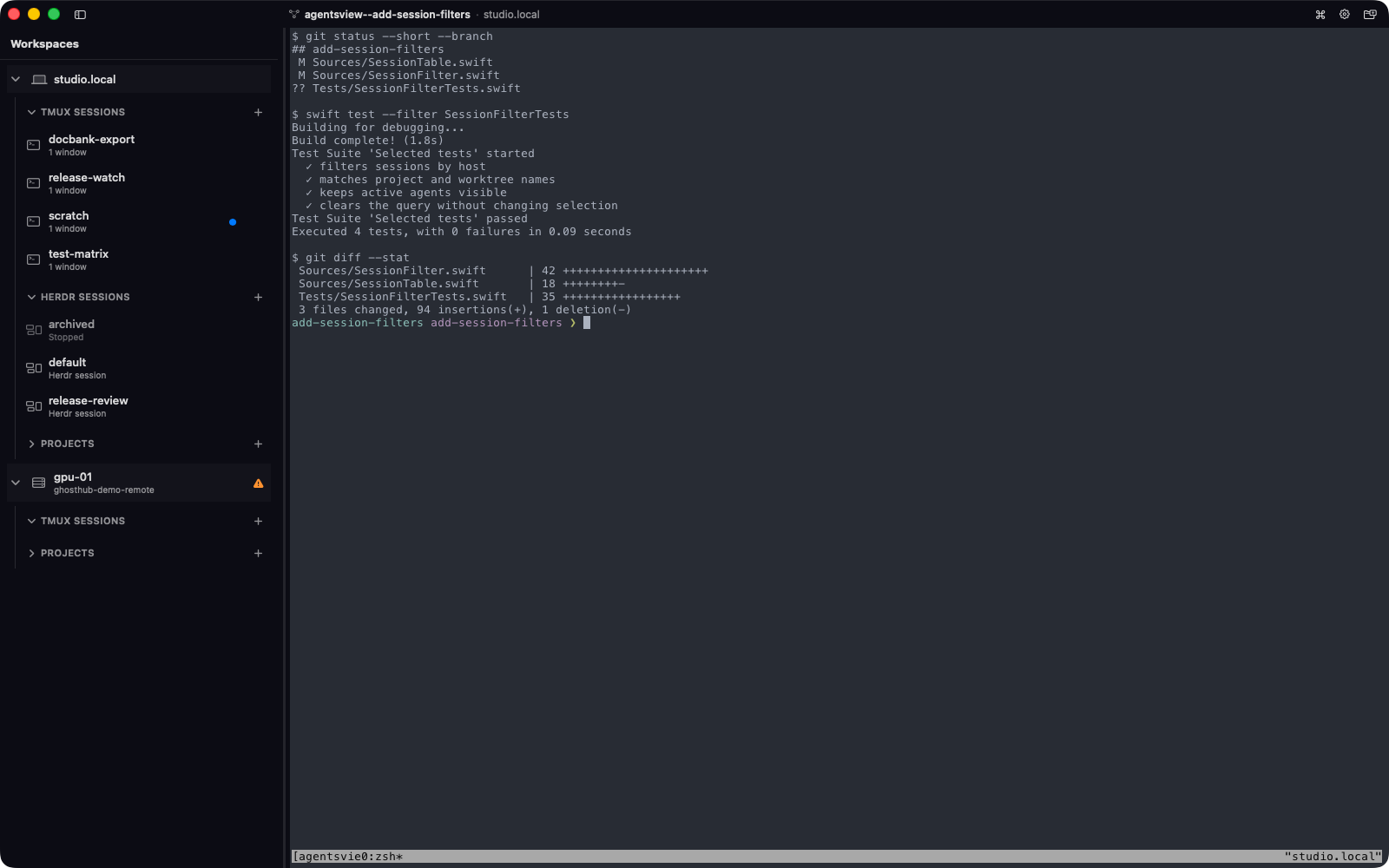
Only genuine output counts. Switching panes, resizing the window, or a full-screen tool redrawing its prompt, spinner, or status display does not light the indicator. Closing the window still only detaches; the warm session stays visible across your other Ghosthub windows.
This activity state resets when Ghosthub quits. Ghosthub never scans sessions you have not opened, and terminal text never leaves the host: the probe returns only a checksum and size counters. On native Windows hosts, activity indicators require psmux 3.3.4 or newer.
Reopen an exited standalone session
If a standalone session exits while its presentation is still open, Ghosthub shows a Reopen action. Reopening creates a new tmux session with the exact previous name. It cannot restore processes from the exited session.
A clean detach or a confirmed ended session stays closed until you explicitly open or reopen it.
End a session deliberately
To end a standalone session that Ghosthub knows is running, hover over its sidebar row and choose the subtle × control. For a kwt-backed session, Control-click its worktree row and choose Kill Session….
Ghosthub confirms the host and exact tmux session before it sends
kill-session. Ending a session terminates all of its windows, panes, and
processes and cannot be undone.
For tmux, Ghosthub cancels the operation if the host connection changes, or if the original session disappears and another session appears under the same name. If the command fails, the active attachment remains open.
Herdr lifecycle is whole-session only:
- A running row offers Stop Session…. After confirmation, every shell, agent, server, test, and other process ends, while Herdr retains the saved workspace/tab/pane shape.
- A dimmed Stopped row offers Restart, which restores that shape with new processes and attaches immediately.
- A stopped named row also offers Delete Session…, which permanently removes its saved state after confirmation.
- Herdr's default session may be stopped and restarted, but never deleted.
These actions are also in the Command Palette. Ghosthub suppresses reconnect across every open scene while an intentional stop runs, so another window does not silently resurrect the session.
An active Zellij row offers Kill Session…. Ghosthub confirms the host and name, rechecks that exact active session immediately before the command, and then asks Zellij to kill it. While the kill is running, Ghosthub detaches that session and suppresses same-session reconnects in every open scene so neither an existing client nor an automatic reconnect can undo the intentional kill. Successful kills also remove the row from every open scene and refresh Zellij inventory. If the kill fails, an eligible detached presentation or matching pending open or restoration is rechecked before it resumes. Zellij does not provide tmux-style stable session identity, so a same-name replacement between the final check and command is an accepted race. Ghosthub never offers resurrection or deletes exited Zellij sessions.
Killing a session is different from removing a worktree
Kill Session… ends tmux processes but keeps the checkout. Removing a worktree ends its verified live session when necessary and then removes the checkout, while keeping the Git branch. See Remove a worktree.
Hide standalone sessions
To keep tool-owned or noisy standalone sessions out of the sidebar:
- Open Settings → Worktrees.
- Add hidden tmux session patterns, one per line.
Patterns are case-sensitive. * matches any number of characters and ?
matches one character. Ghosthub stores these patterns in
~/.config/ghosthub/config.toml.
The patterns apply only to standalone sessions. A matching kwt workspace stays visible under its project.
Kwt-managed sessions are also omitted from the separate Tmux Sessions group by default because their worktrees remain the canonical entry. You can expose those duplicate session rows with the toggle in Settings → Worktrees. The worktree's status glyph continues to reflect the live tmux session either way.
Ownership and safety
Ghosthub does not infer that closing a presentation means ending work. It destroys a tmux session only after an explicit, confirmed Kill Session action or as part of confirmed worktree removal when that worktree has a verified live session. Sessions created outside Ghosthub receive the same protection as sessions created inside it. For Herdr, Ghosthub manages only whole-session create, stop, restart, and delete, plus the explicit Split Right and Split Down requests against a connected Herdr 0.8.0-or-newer session. Herdr selects the focused pane and continues to own themes, workspaces, tabs, panes, agents, plugins, configuration, updates, and internal process behavior. For Zellij, Ghosthub manages only active-session create, attach, and confirmed kill. Zellij continues to own tabs, panes, layouts, themes, plugins, configuration, updates, resurrection data, and process behavior.